
Setting up your virtual card
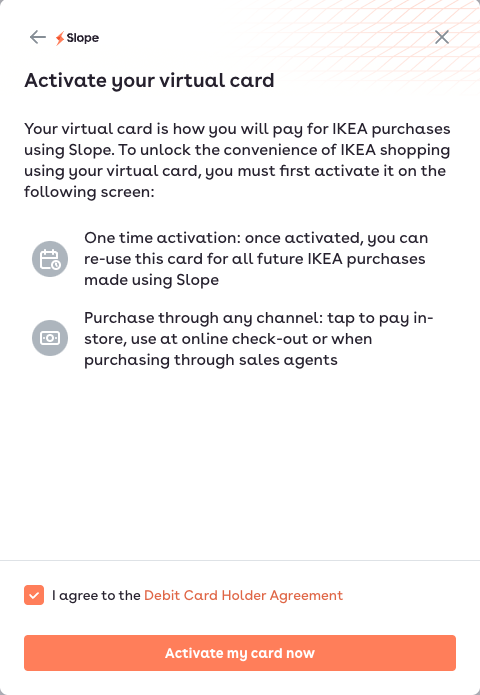
Once you've been approved for Slope, you'll be able to activate a virtual card. In your Buyer portal, you'll be prompted to activate your virtual card, as seen below.

Once you do, you'll agree to the Card Holder agreement.
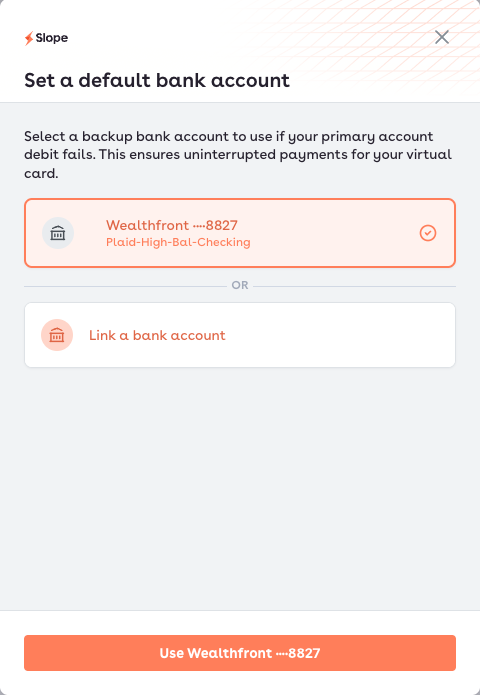
You'll then be asked to set a default bank account, which is the account that Slope will debit when a payment is due. You can change anytime you want, as well as change the payment method for each individual order in the Buyer portal.
Once you've chosen a payment bank account, you'll see your Virtual card, as seen below. Click on the Toggle Card Details button to see your card number, CVV, and expiration date.
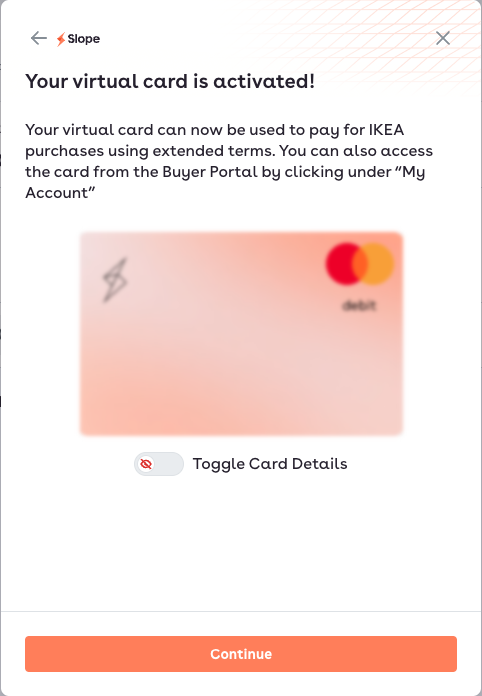
You can also see your card details anytime by going to your Buyer portal, clicking on the profile picture in the top right, and clicking on "Virtual Card."